Add Watermark to PDF Documents
Watermark your PDF documents directly on your phone. Mark files as confidential or draft, or add your company logo — every page gets the mark.
Professional PDF Watermarking on Your Phone
Watermarking PDF documents is a standard practice in business, legal, and creative industries. Whether you need to mark a contract as “Draft,” label a report as “Confidential,” or stamp a proposal with your company logo, adding a watermark to a PDF signals intent and protects your intellectual property. With Watermark Maker, you can do all of this directly on your mobile device — no desktop software required.
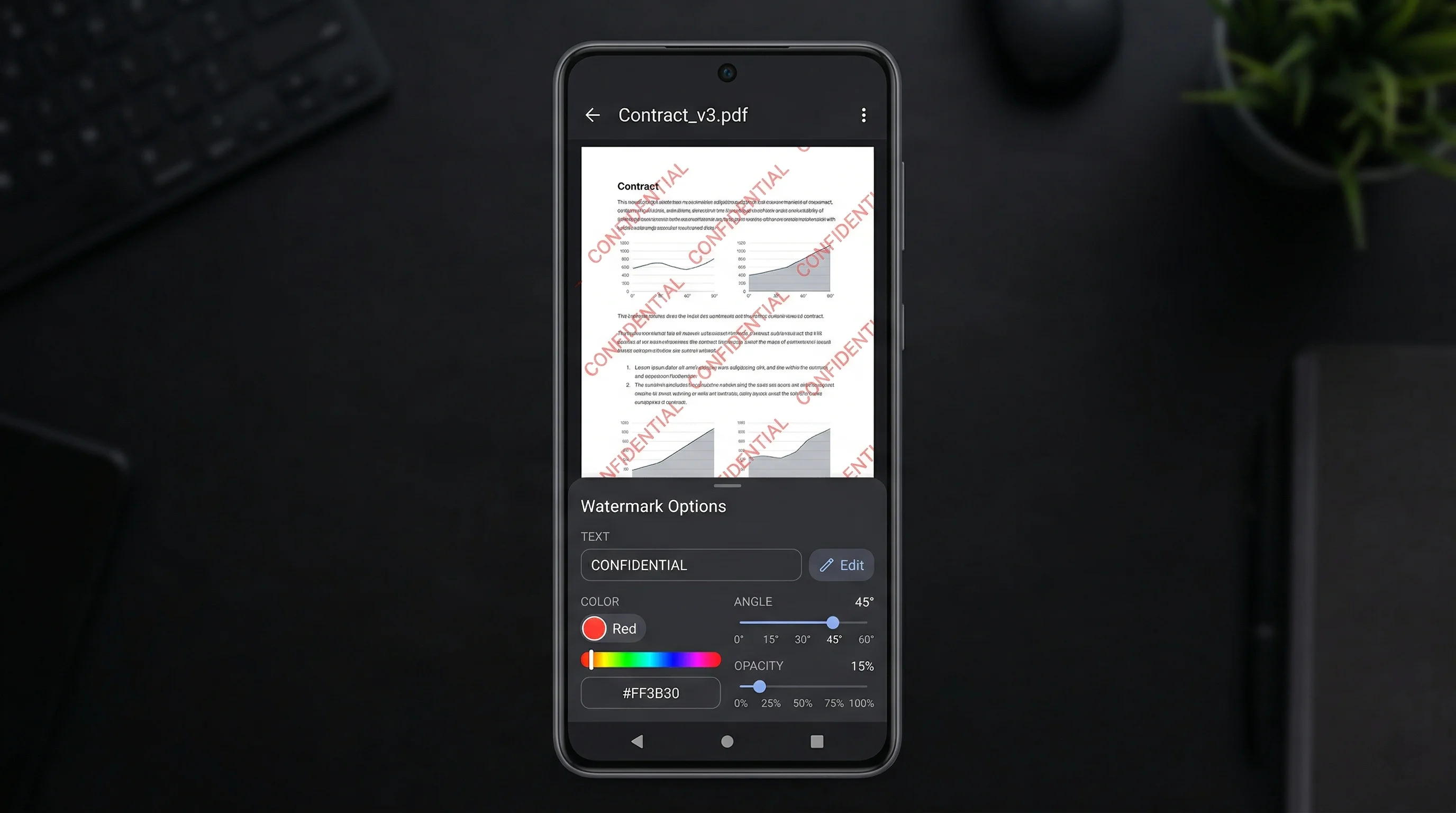
The app lets you watermark PDF documents with text overlays or your own logo. The watermark goes on every page of the document — the editor says so under the preview, and there is no page picker to get wrong. Adjust the opacity so the watermark is clearly visible but does not obscure the content underneath. For stronger protection, switch from SINGLE to TILED to repeat your watermark across the whole page.
One common use case for PDF watermarking is sharing documents externally while discouraging unauthorized redistribution. Lawyers watermark PDFs before sending them to opposing counsel. Designers watermark PDF proofs before client approval. Businesses watermark internal documents to track which version was shared and with whom. In each case, the watermark serves as both a visual deterrent and a mark of ownership.
Watermark Maker processes your PDF files entirely on your device, so sensitive documents are never uploaded to a server. This is especially important for confidential business materials, and the full walkthrough for stamping a PDF on your phone covers the process end to end. One thing to know before you send the result on: the app renders each page to a 200 DPI image and rebuilds the document from those, so the watermarked copy has no selectable text and none of the original document properties. It is right for a proof, a draft stamp or a confidential marking, and wrong for a file someone needs to search or copy from. The export opens the share sheet rather than saving to the device, so send it somewhere before you close it. If you also work with images, the same app lets you add watermarks to photos and even videos, making it a single solution for all your watermarking needs.
How to Watermark a PDF
Open Your PDF
Launch Watermark Maker, tap the PDF tile and pick a document from your files. PDF watermarking is a Premium feature.
Add Your Watermark
Type text like “Confidential” or “Draft,” or import your company logo. Set the position, SCALE and OPACITY, and switch to TILED if you want it across the whole page.
Save the PDF
Tap Export. The share sheet opens with the watermarked copy, so send it to email, a messaging app or cloud storage from there.
Download Watermark Maker
Watermark your PDFs on the go. Available on Android and iOS.